
Barcodes for athlete identification
You can use barcodes as a method to efficiently scan in your athletes against race results / lanes in RaceHQ. The barcode is a representation of the athletes Rego ID / ID number and has the same effect as typing in the ID number to RaceHQ.
The barcode font currently recognised by RaceHQ is called Code 39
You can download Code 39 from https://www.idautomation.com/free-barcode-products/code39-font/ and apply this font in Excel/Word in order to print barcodes onto your desired medium.
RaceHQ also has a built in barcode printing features - see below instructions for this.
Using RaceHQ Bib Printing feature
Note - If your athlete number is not printing or is on the second page, try putting in -200 or 200 into the "Left" field.
1. Open RaceHQ
2. Open up the settings window
3. Enter your credentials Login to RaceHQ . This will download your latest Members, including their ID numbers as per ResultsHQ (required for barcode printing). You should see the member count and season information update.
4. Confirm you have the correct printer selected via the printer tab
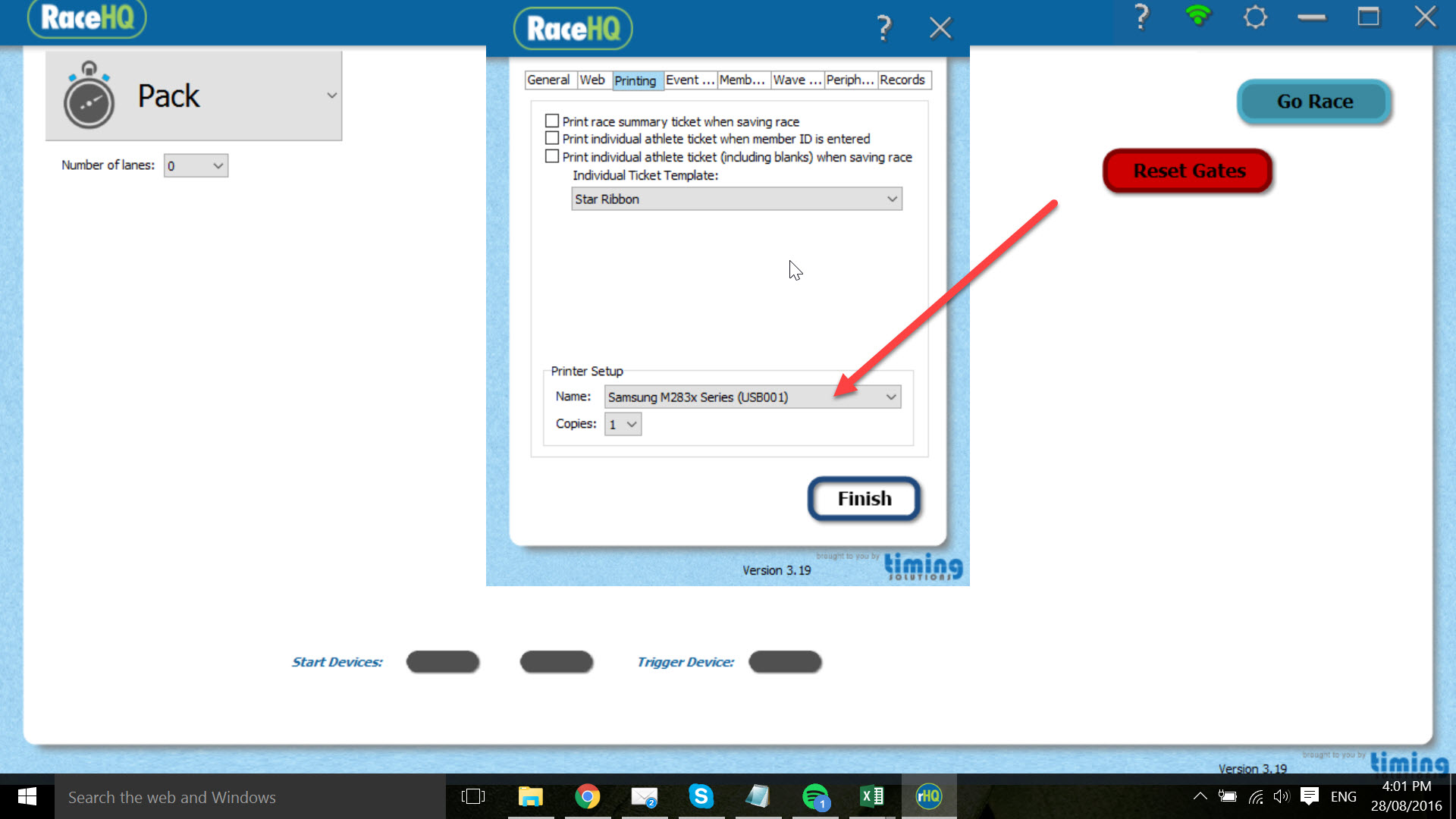
5. Then press Finish
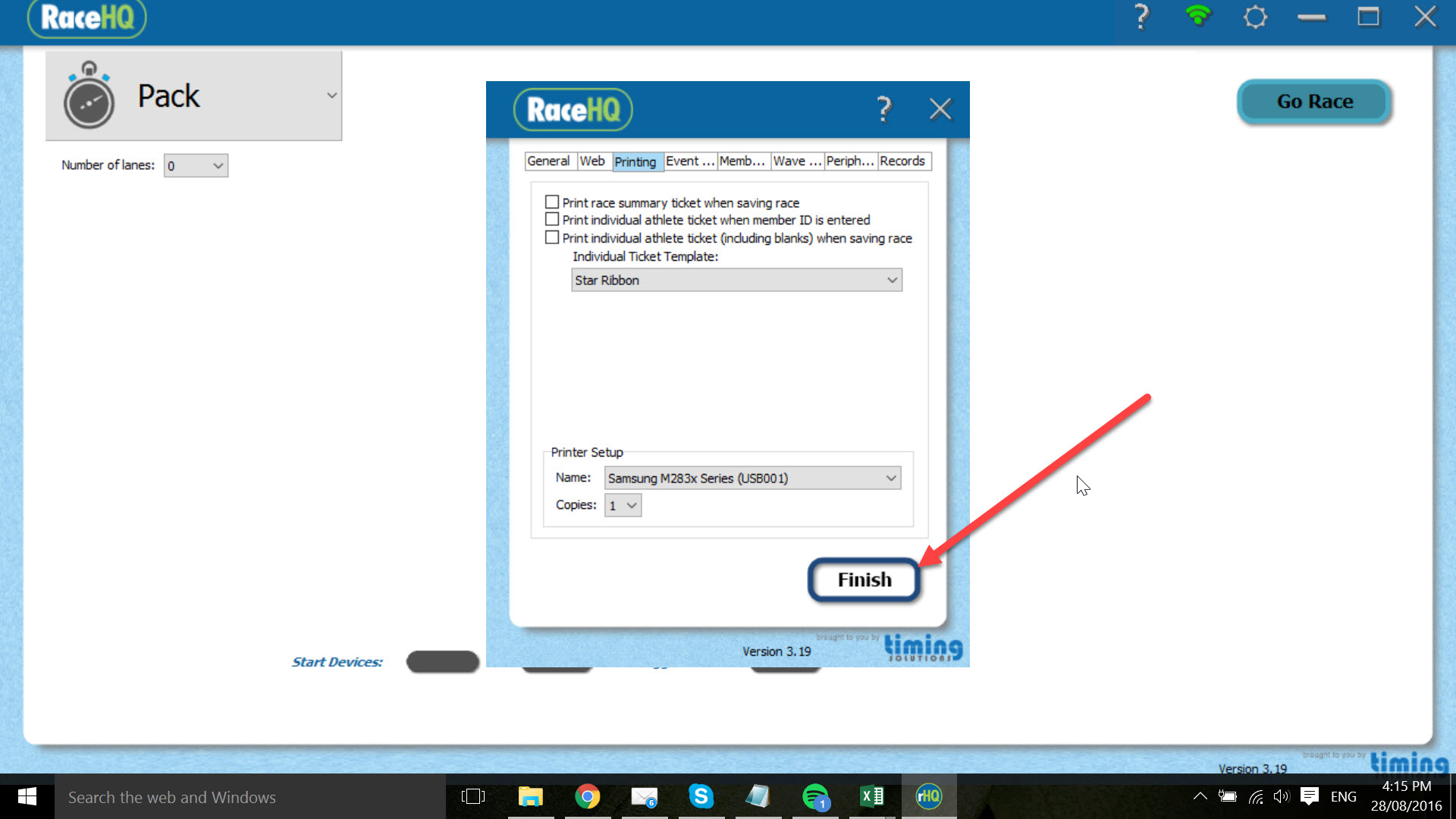
6. Now select the Barcode option from the menu of applications
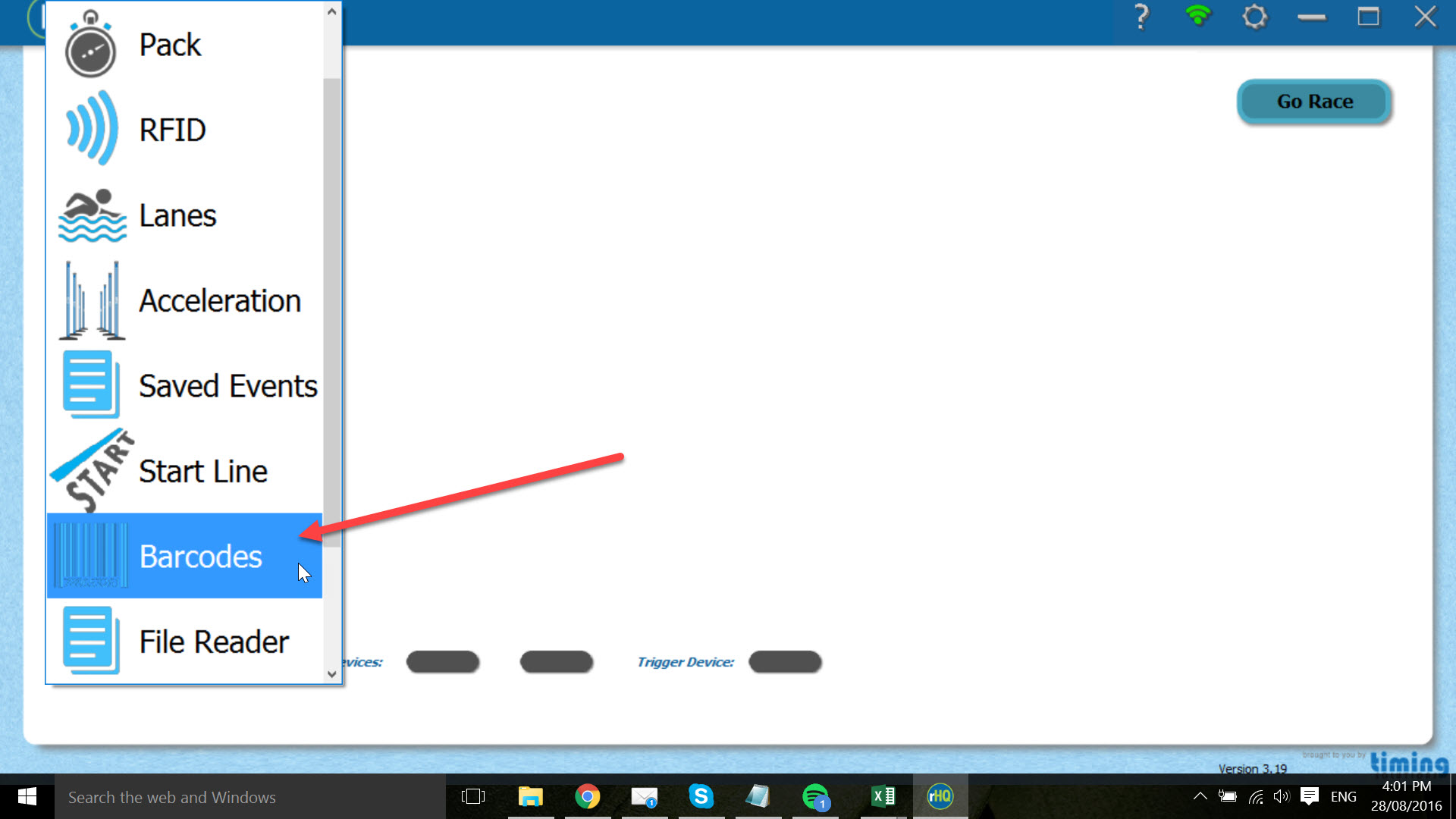
7. Select the Age/s, Gender/s and Club/s you wish to print or use the search function to find someone particular
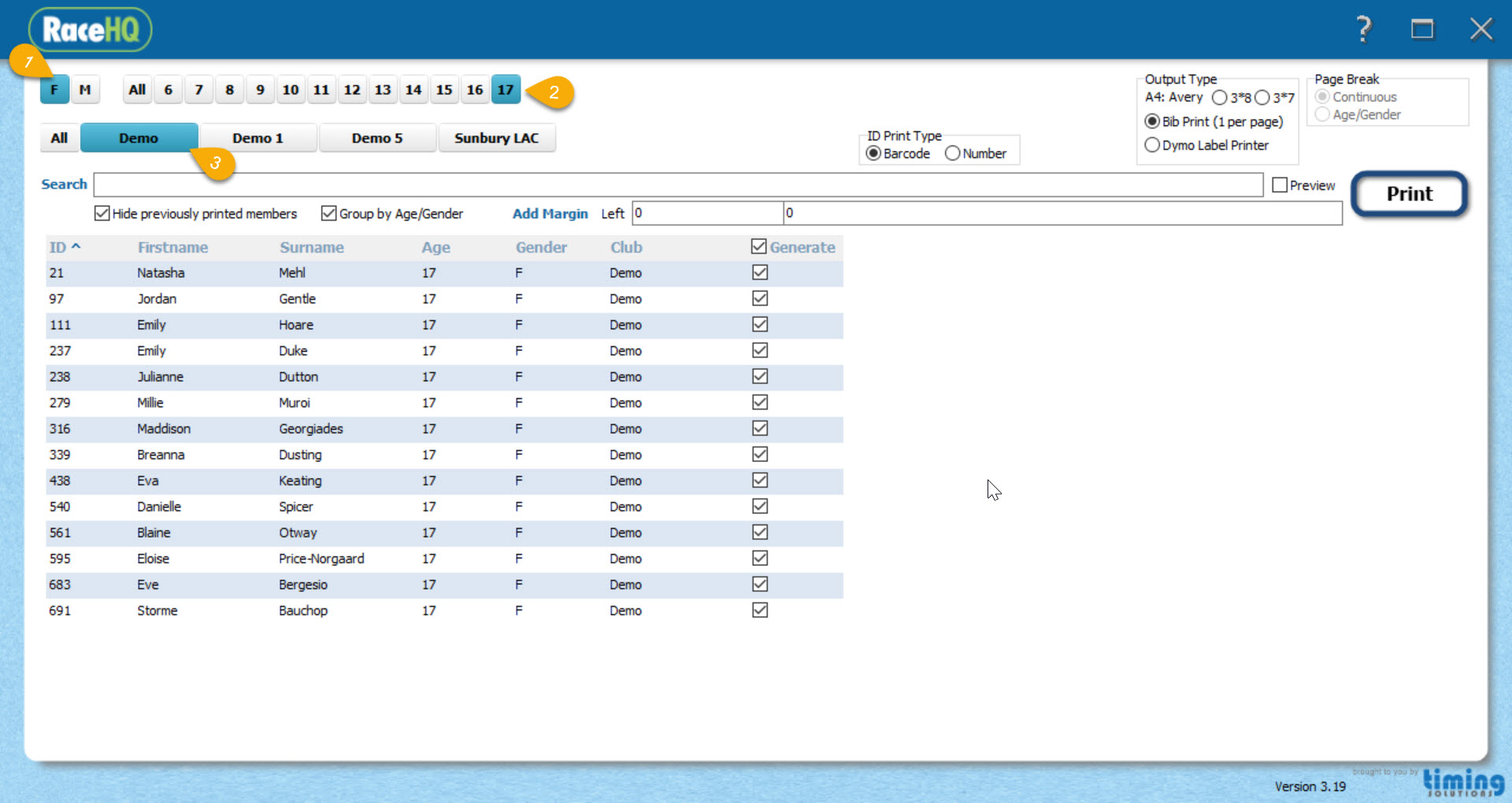
8. This should show all the athletes that have not been printed yet. If you want to see every (printed previously or not) un-tick the "Hide previously printed members"
- Most importantly, place a tick in the checkbox to the right of the members that you would like to print a barcode for. Tick the checkbox in the heading to select all of the athletes in your search criteria, and vice versa to unselect all.
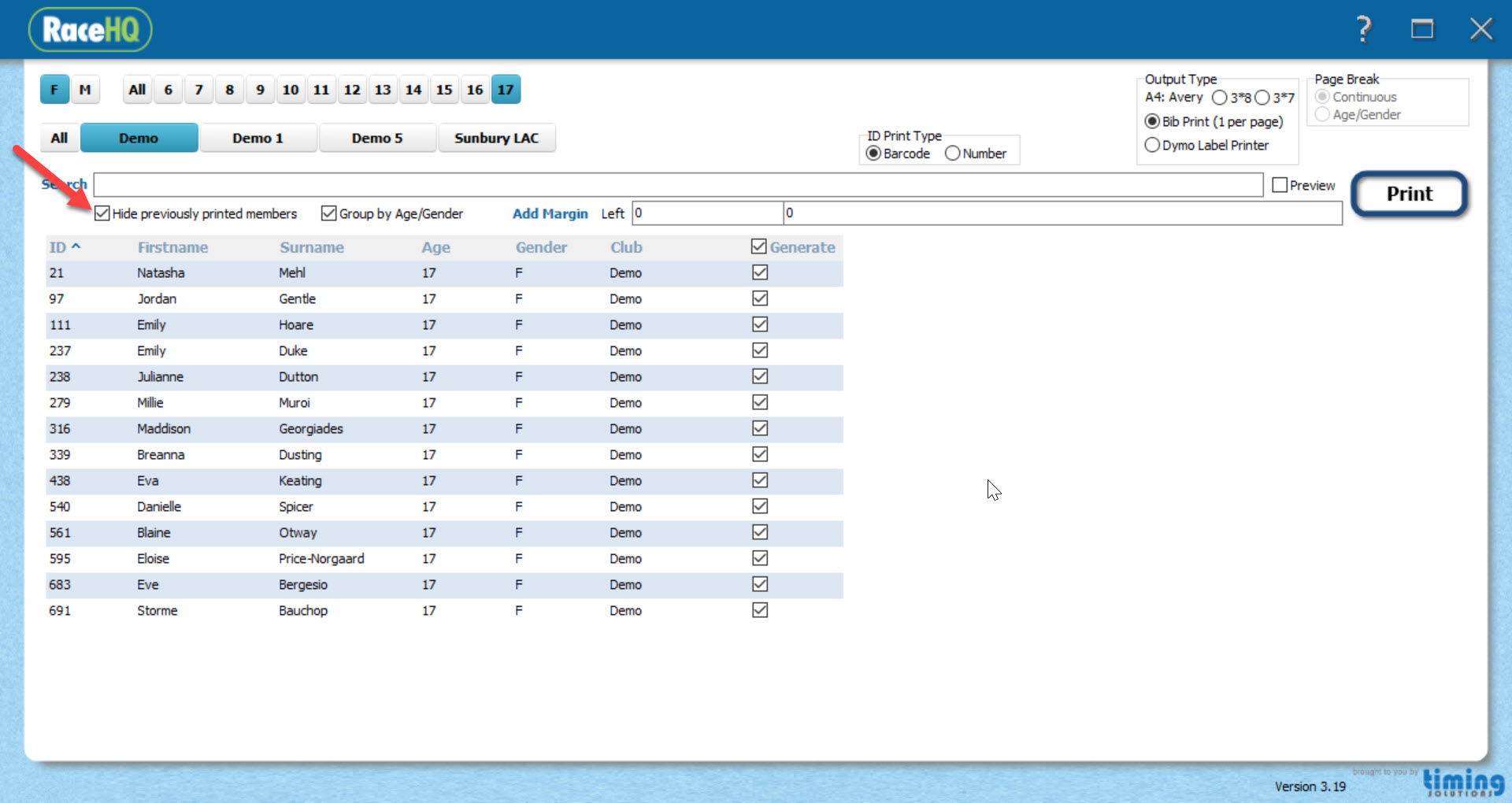
9. Then select the type of printing you want and if you want barcodes or not displayed
A. A4 Avery Label, 3 x 8 to a page. Avery software code J8159
B. LAVic Bib print; one member name, age, barcode to a page/bib
Note: This is only to be used for an agreed bib type generally only supported by specific athletics organisations.
Printer specification:
- Laser
- Black (it only needs black other colours are not necessary)
- Manual paper feed tray or the ability to allow envelope-size paper into the tray
- Set the paper size in your print settings to be A5
C. Dymo printer; roll of barcodes - 11354
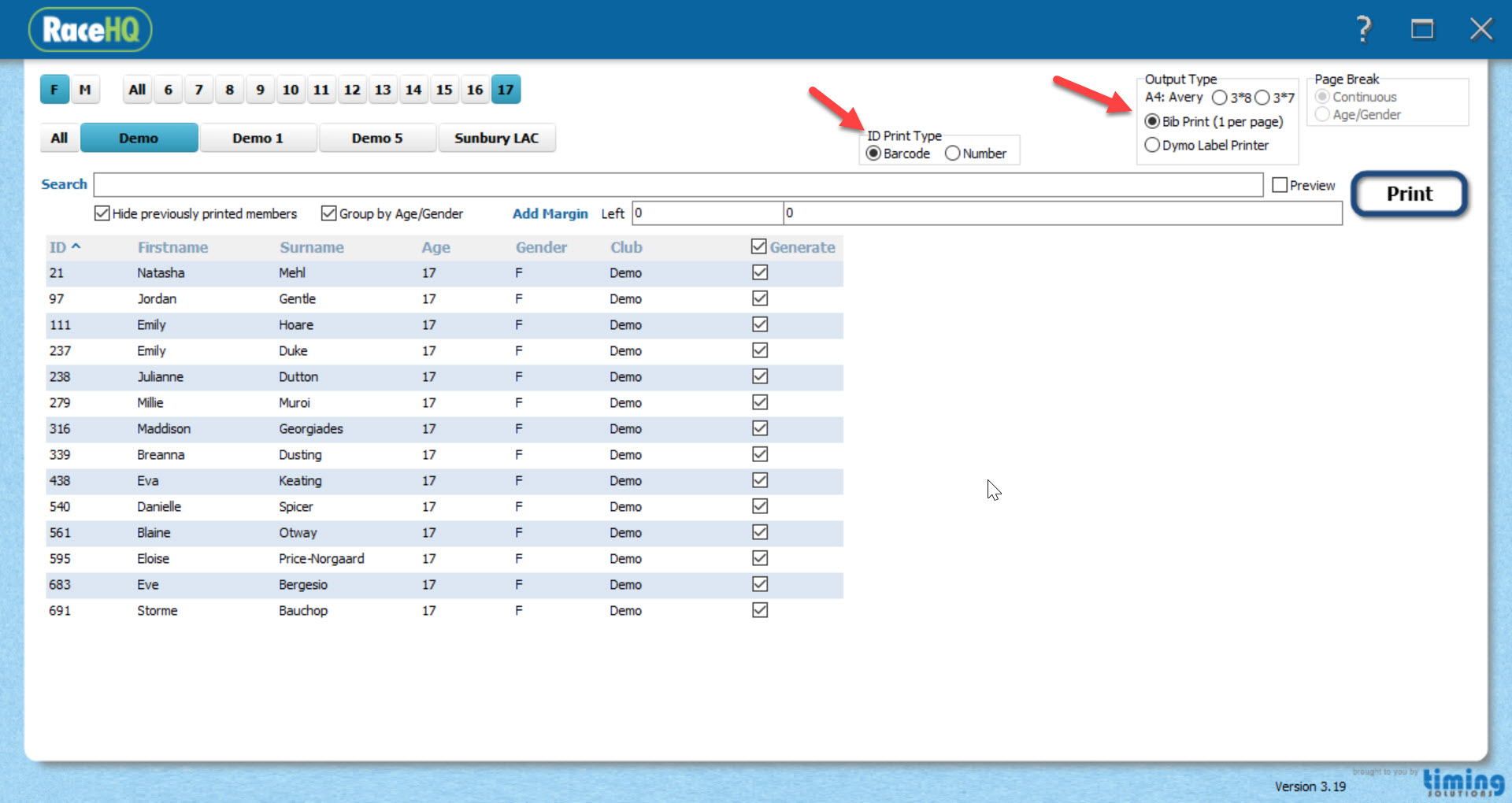
10. To preview what it will look like click on the Preview option
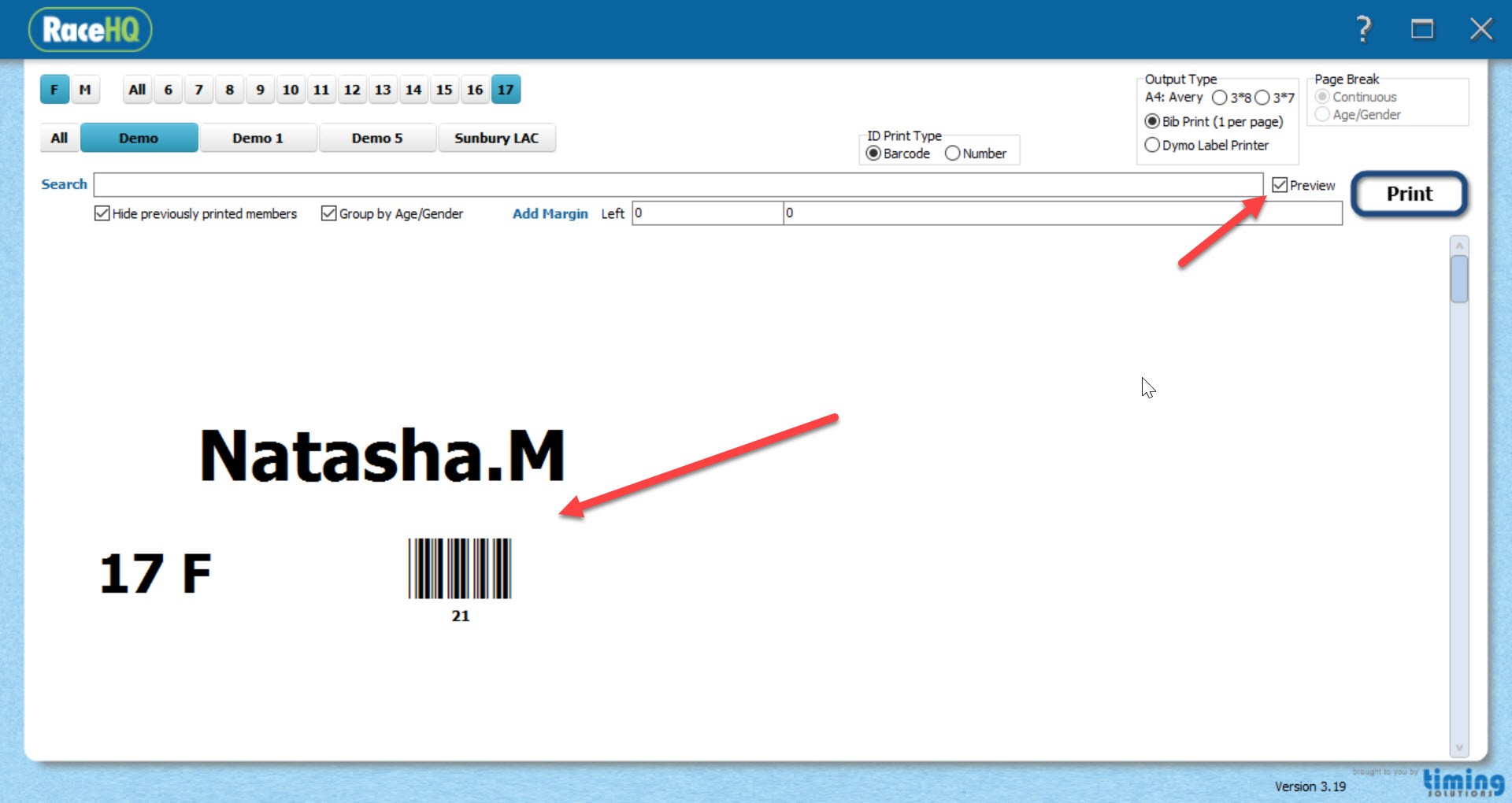
11. Print using the print button...it's good idea to do a single test first. Then when you are happy, you can do it small batches
Note: Based on your testing, you can add adjustments to the margins, either positive (eg 200 moves print up and left) or negative (eg -200 moves print down and right). Adjust the number as required until you are spot on.
If your athlete number is not printing or is on the second page, try putting in -200 or 200 into the "Left" field.
Comments
2 comments
What is the Dymo Label number to buy to work with TS?
Hi, as per the note in the article - C. Dymo printer; roll of barcodes - 11354
Article is closed for comments.